
e-Nable France

The Phoenix Unlimbited Hand and Unlimbited Arm are provided as an OpenScad file.

OpenScad exists for Mac, Windows and Linux and can be downloaded here : http://www.openscad.org/

OpenScad and the Phœnix Unlimbited hand

If you haven’t already, download the Phoenix Unlimbited hand scad file here : https://www.thingiverse.com/thing:1674320 then open it with OpenScad.

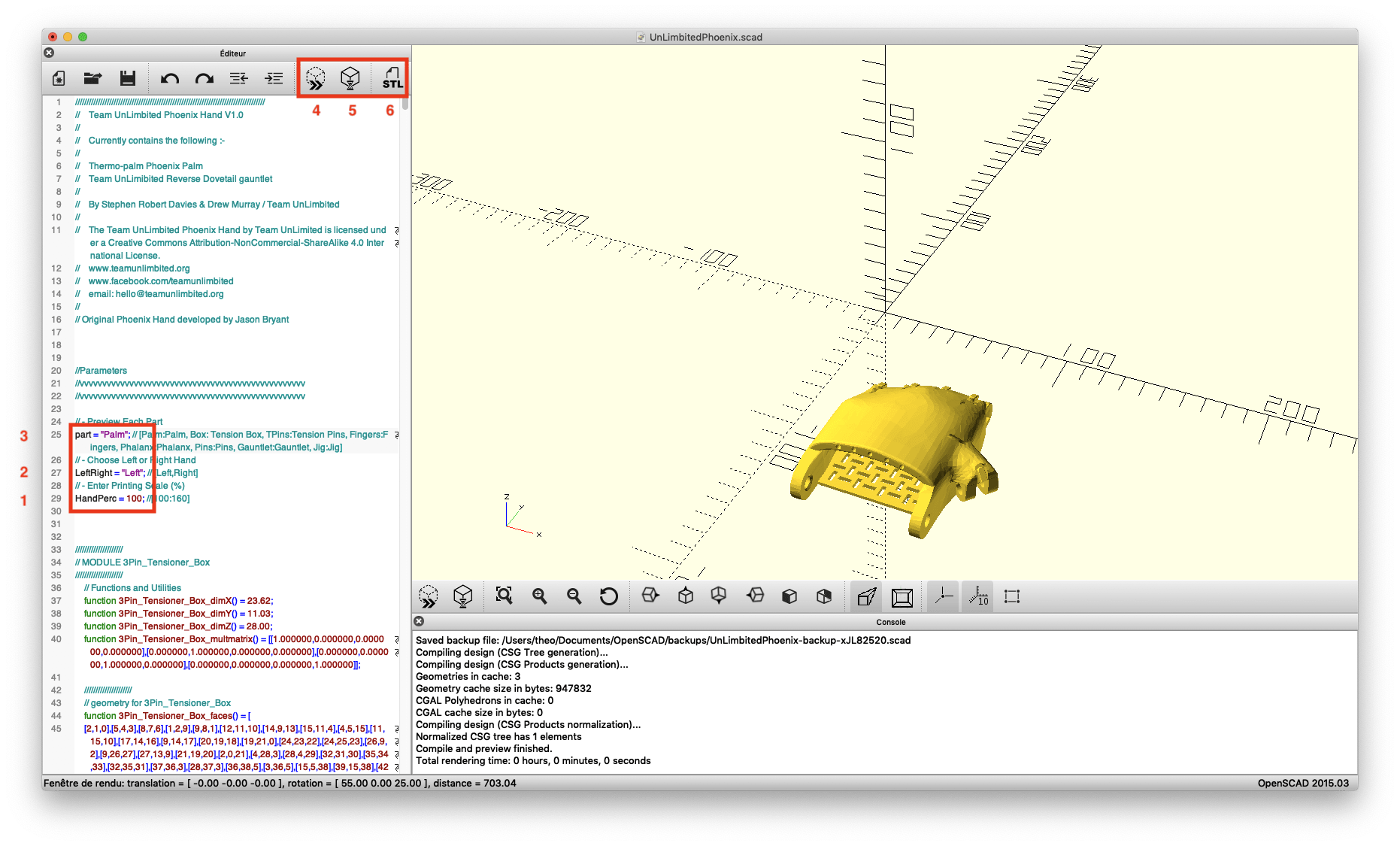
You will be able to indicate (red boxes) :

  1. The desired percentage of enlargement (between 100 and 160)
  2. If you want a right hand (right) or left (left)
  3. And finally the part of the hand to generate:
    • Palm: the palm
    • Box: the tensioner
    • TPins: the tensioner pins
    • Fingers: terminal phalanges
    • Phalanx: the proximal phalanges
    • Pins: other pins
    • Gauntlet: the gauntlet
    • Jig: the thermoforming jig
  4. Preview
  5. Render
  6. Save as STL

The display should look like this:
OpenScad and the Unlimbited arm

You will need the three measurements above.

  • A – valid hand length
  • B – valid forearm length
  • C – disabled arm biceps circumference

If you haven’t already, download the Phoenix Unlimbited arm scad file here : https://www.thingiverse.com/thing:1672381 then open it with OpenScad.

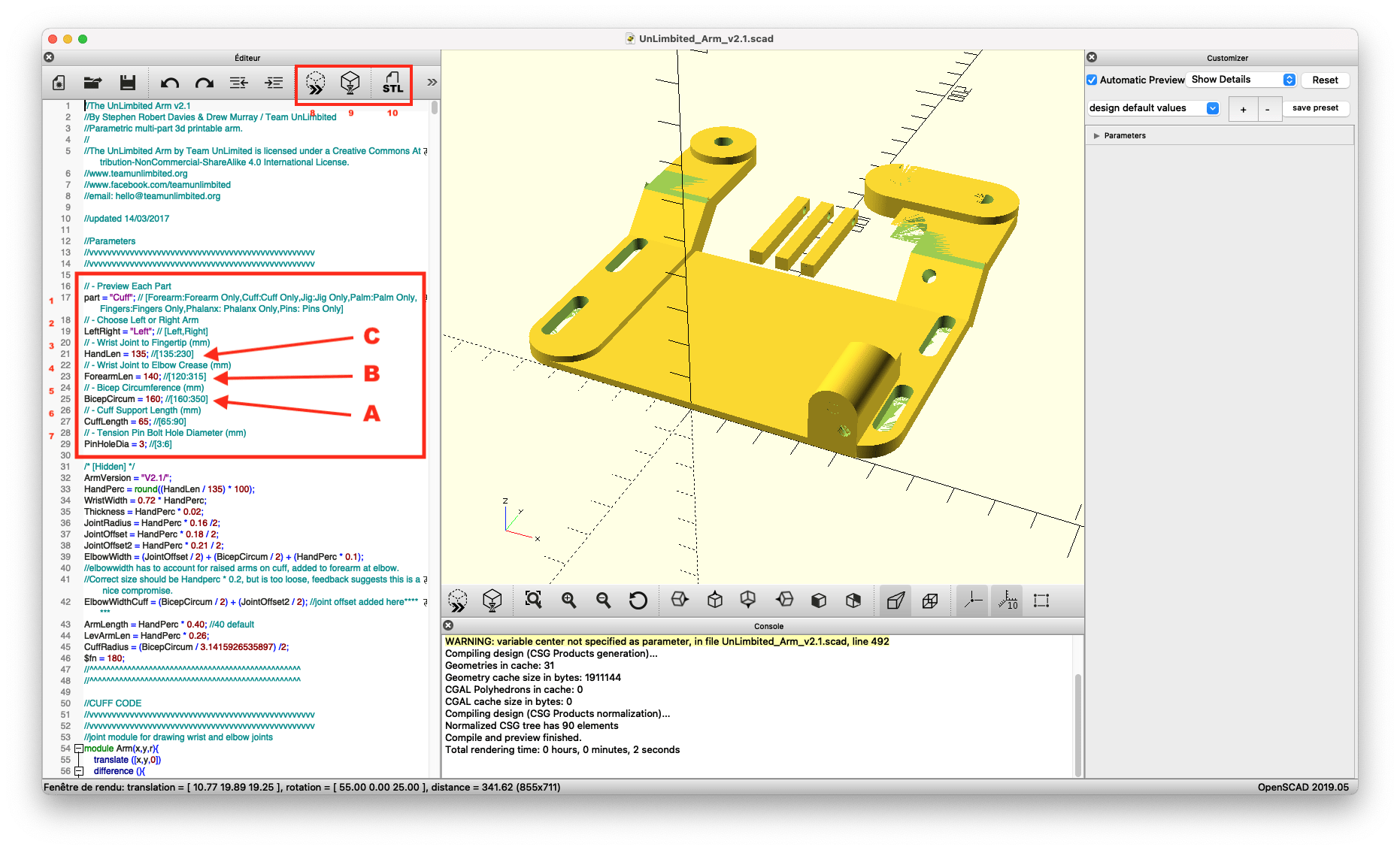
Vous allez pouvoir indiquer (encadrés rouges) :

  1. Part: The part of the hand to generate.
    Replace the text in purple between quotes by :

    • Forearm : the forearm
    • Cuff : the biceps piece
    • Jig : the thermoforming form for the Cuff
    • Palm : the palm
    • Fingers : the fingers
    • Phalanx : the proxmal phalanx
    • Pins : all other pins
  2. LeftRight : Enter “Left” for a left arm, “Right” for a right arm
  3. HandLen : The length of the valid hand (measure C)
  4. ForearmLen : The length of the valid forearm (measure B)
  5. BicepsCircum : the circumference of the biceps on the disabled arm (measure A)
  6. CuffLength : do not change this setting
  7. PinHoleDia : do not change this setting
  8. Preview
  9. Render
  10. Save as STL

The display should look like this :
La main Phoenix Unlimbited et le bras Unlimbited sont fournis sous forme de fichier OpenScad.

OpenScad existe pour Mac, Windows et Linux et peut être téléchargé ici : http://www.openscad.org/

OpenScad et la main Phœnix Unlimbited

Si ce n’est déjà fait, téléchargez le fichier scad de la main Phœnix Unlimbited ici : https://www.thingiverse.com/thing:1674320 puis ouvrez-le dans OpenScad.

Vous allez pouvoir indiquer (encadrés rouges) :

  1. Le pourcentage d’agrandissement souhaité (entre 100 et 160)
  2. Si vous voulez une main droite (right) ou gauche (left)
  3. Et enfin la partie de la main à générer :
    • Palm : la paume
    • Box : le tensionneur
    • TPins : les pins du tensionneur
    • Fingers : les phalanges terminales
    • Phalanx : les phalanges proximales
    • Pins : les autres pins
    • Gauntlet : le gantelet
    • Jig : la forme de thermoformage
  4. Prévisualier
  5. Faire le rendu
  6. Sauver en STL

L’affichage doit ressembler à ceci :

OpenScad et le bras Unlimbited

Vous aurez besoin des trois mesures ci-dessus.

  • A – longueur de la main valide
  • B – longueur de l’avant bras valide
  • C – circonférence du biceps du bras handicapé

Si ce n’est déjà fait, téléchargez le fichier scad du bras Phœnix Unlimbited ici : https://www.thingiverse.com/thing:1672381 puis ouvrez-le dans OpenScad.

Vous allez pouvoir indiquer (encadrés rouges) :

  1. Part : La partie de la main à générer.
    Remplacer le texte en violet entre guillemets par :

    • Forearm : l’avant-bras
    • Cuff : la pièce de biceps
    • Jig : la forme de thermoformage pour la Cuff
    • Palm : la paume
    • Fingers : les doigts
    • Phalanx : les phalanges proximales
    • Pins : les autres pins
  2. LeftRight : Entrez “Left” pour un bras gauche, “Right” pour un bras droit
  3. HandLen : La longueur de la main valide (mesure C)
  4. ForearmLen : La longueur de l’avant bras valide (mesure B)
  5. BicepsCircum : la circonférence du biceps sur le bras handicapé (mesure A)
  6. CuffLength : ne changez pas ce paramètre
  7. PinHoleDia : ne changez pas ce paramètre
  8. Prévisualier
  9. Faire le rendu
  10. Sauver en STL

L’affichage doit ressembler à ceci :